

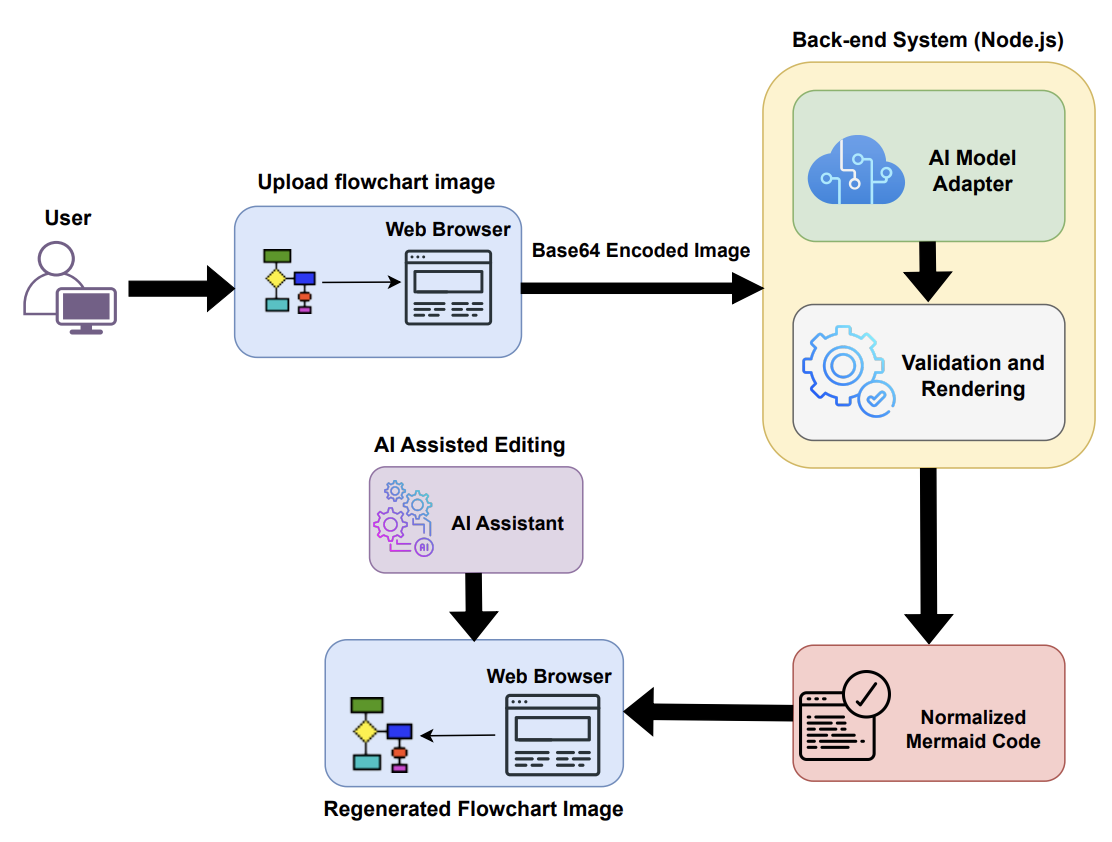
After partitioning, you can have Unstructured generate text-based summaries of detected images. This summarization is done by using models offered through various model providers. Here is an example of the output of a detected image using GPT-4o. Note specifically the text field that is added. In this text field, type indicates the kind of image that was detected (in this case, a diagram), and description is a summary of the image. Line breaks have been inserted here for readability. The output will not contain these line breaks. Example of a diagram
{
  "type": "Image",
  "element_id": "dd1fb72db7937725c9a781906098e6f8",
  "text": "{\n    
    \"type\": \"diagram\",\n    
    \"description\": \"User uploads a flowchart image via a Web Browser, which is then 
      converted to a Base64 Encoded Image. This image is sent to the Back-end System 
      (Node.js) where it is processed by the AI Model Adapter. The output undergoes 
      Validation and Rendering, resulting in Normalized Mermaid Code. AI Assisted 
      Editing is available through an AI Assistant, which allows for the Regenerated 
      Flowchart Image to be viewed again in the Web Browser.\\n\\n
      Text in the image:\\n
        - User\\n
        - Upload flowchart image\\n
        - Web Browser\\n
        - Base64 Encoded Image\\n
        - Back-end System (Node.js)\\n
        - AI Model Adapter\\n
        - Validation and Rendering\\n
        - Normalized Mermaid Code\\n
        - AI Assisted Editing\\n
        - AI Assistant\\n
        - Regenerated Flowchart Image\"\n
  }",
  "metadata": {
    "filetype": "application/pdf",
    "languages": [
      "eng"
    ],
    "page_number": 1,
    "image_base64": "/9j...<full results omitted for brevity>...Q==",
    "image_mime_type": "image/jpeg",
    "filename": "7f239e1d4ef3556cc867a4bd321bbc41.pdf",
    "data_source": {}
  }
}
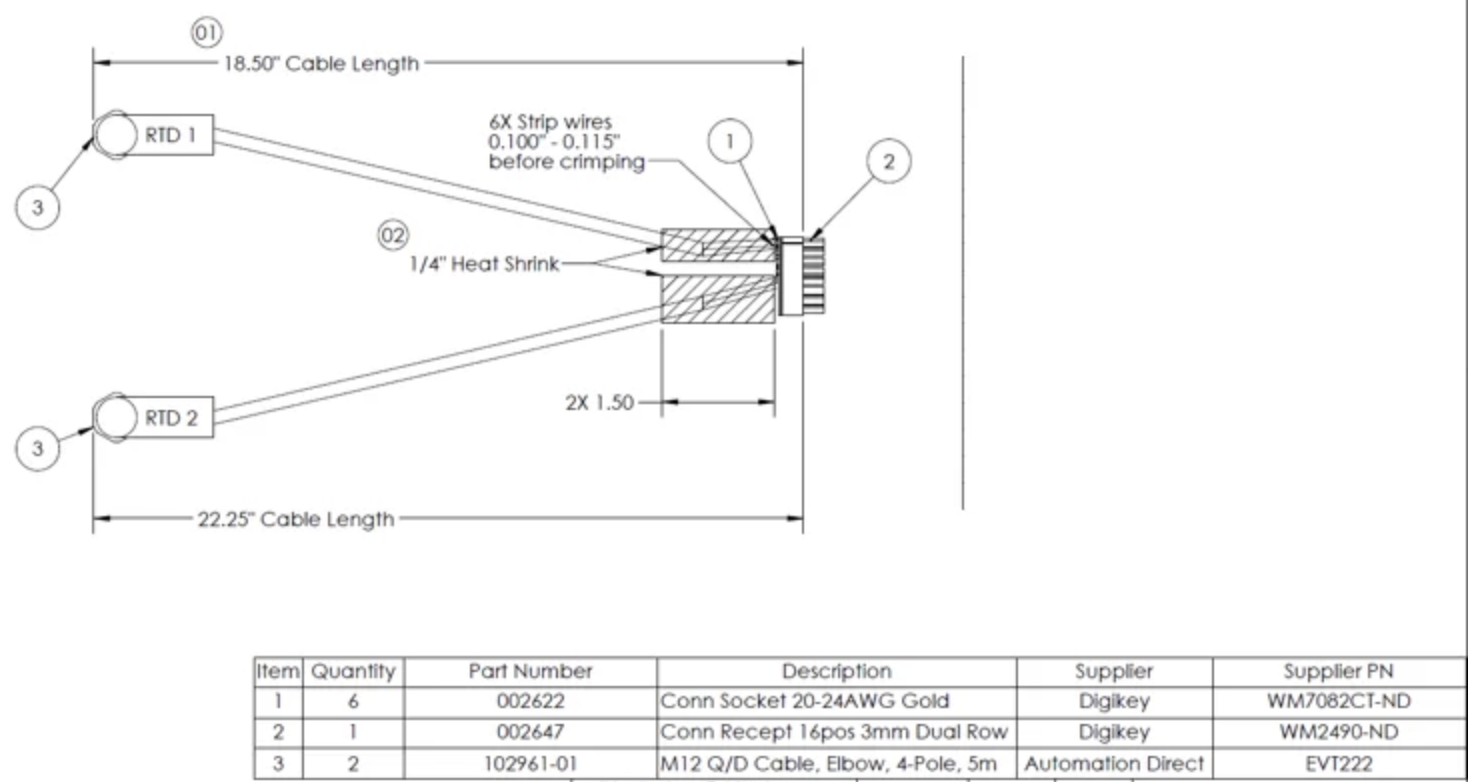
For technical drawings, the text field will contain a type of technical drawing; description with texts containing text strings found in the drawing, tables containing HTML representations of tables found in the drawing, and a description containing a summary of the drawing. Here is an example. Line breaks have been inserted here for readability. The output will not contain these line breaks. Example of a technical drawing
{
  "type": "Image",
  "element_id": "7877acdd762f2afc65b193fa89d8ef46",
  "text": "{\n  
    \"type\": \"technical drawing\",\n  
    \"description\": {\n    
      \"texts\": [\n
        \"RTD 1\",\n      
        \"RTD 2\",\n      
        \"01\",\n      
        \"18.50\\\" Cable Length\",\n      
        \"02\",\n      
        \"1/4\\\" Heat Shrink\",\n      
        \"6X Strip wires 0.100\\\" - 0.115\\\" before crimping\",\n      
        \"2X 1.50\",\n      
        \"22.25\\\" Cable Length\"\n    
      ],\n    
      \"tables\": "<table>
        <thead>
          <tr>
            <th>Item</th>
            <th>Quantity</th>
            <th>Part Number</th>
            <th>Description</th>
            <th>Supplier</th>
            <th>Supplier PN</th>
          </tr>
        </thead>
        <tbody>
          <tr>
            <td>1</td>
            <td>6</td>
            <td>002622</td>
            <td>Conn Socket 20-24AWG Gold</td>
            <td>Digikey</td>
            <td>WM7082CT-ND</td>
          </tr>
          <tr>
            <td>2</td>
            <td>1</td>
            <td>002647</td>
            <td>Conn Recept 16pos 3mm Dual Row</td>
            <td>Digikey</td>
            <td>WM2490-ND</td>
          </tr>
          <tr>
              <td>3</td>
              <td>2</td>
              <td>102961-01</td>
              <td>M12 Q/D Cable, Elbow, 4-Pole, 5m</td>
              <td>Automation Direct</td>
              <td>EVT222</td>
          </tr>
        </tbody>
      </table>",\n    
      \"description\": \"The technical drawing depicts a wiring setup involving two 
          RTDs (Resistance Temperature Detectors) labeled RTD 1 and RTD 2. Each RTD 
          is connected via cables with specified lengths: RTD 1 has an 18.50-inch 
          cable length, and RTD 2 has a 22.25-inch cable length. The drawing 
          includes annotations for stripping wires, indicating that six wires should 
          be stripped to a length between 0.100 inches and 0.115 inches before 
          crimping. There is a section labeled '1/4\\\" Heat Shrink' and a dimension 
          marked '2X 1.50'. The drawing uses numbered circles to reference specific 
          parts or steps in the process.\"\n  
      }\n
  }",
  "metadata": {
    "filetype": "application/pdf",
    "languages": [
      "eng"
    ],
    "page_number": 1,
    "image_base64": "/9j...<full results omitted for brevity>...Q==",
    "image_mime_type": "image/jpeg",
    "filename": "Material-Callouts-c4655c0c.pDF",
    "data_source": {}
  }
}
The image_base64 field is generated only for documents or PDF pages that are partitioned by using the High Res strategy. This field is not generated for documents or PDF pages that are partitioned by using the Fast or VLM strategy.
For workflows that use chunking, note the following changes:
  • Each Image element is replaced by a CompositeElement element.
  • This CompositeElement element will contain the image’s summary description as part of the element’s text field.
  • This CompositeElement element will not contain an image_base64 field.
Here are three examples of the descriptions for detected images. These descriptions are generated with GPT-4o by OpenAI: Description of an image showing a scatter plot graph Description of an image showing the Matthews Correlation Coefficient for different VQA datasets Description of an image showing three scatter plots Any embeddings that are produced after these summaries are generated will be based on the text field’s contents.

Generate image descriptions

To generate image descriptions, in an Enrichment node in a workflow, select Image, and then choose one of the available provider (and model) combinations that are shown.
You can change a workflow’s image description settings only through Custom workflow settings.For workflows that use chunking, the Chunker node should be placed after all Enrichment nodes. Placing the Chunker node before an image descriptions Enrichment node could cause incomplete or no image descriptions to be generated.
The following models are no longer available as of the following dates:
  • Amazon Bedrock Claude Sonnet 3.5: October 22, 2025
  • Anthropic Claude Sonnet 3.5: October 22, 2025
Unstructured recommends the following actions:
  • For new workflows, do not use any of these models.
  • For any workflow that uses any of these models, update that workflow as soon as possible to use a different model.
Workflows that attempt to use any of these models on or after its associated date will return errors.
Unstructured can potentially generate image summary descriptions only for workflows that are configured as follows:
  • With a Partitioner node set to use the Auto or High Res partitioning strategy, and an image summary description node is added.
  • With a Partitioner node set to use the VLM partitioning strategy. No image summary description node is needed (or allowed).
Even with these configurations, Unstructured actually generates image summary descriptions only for files that contain images and are also eligible for processing with the following partitioning strategies:
  • High Res, when the workflow’s Partitioner node is set to use Auto or High Res.
  • VLM or High Res, when the workflow’s Partitioner node is set to use VLM.
Unstructured never generates image summary descriptions for workflows that are configured as follows:
  • With a Partitioner node set to use the Fast partitioning strategy.
  • With a Partitioner node set to use the Auto, High Res, or VLM partitioning strategy, for all files that Unstructured encounters that do not contain images.


